About the Web Desktop
I'm an iOS developer. I want to be clear about that upfront, because everything about this project is the story of an iOS dev stumbling through web development and somehow ending up with a macOS desktop in a browser.
It Started with Email
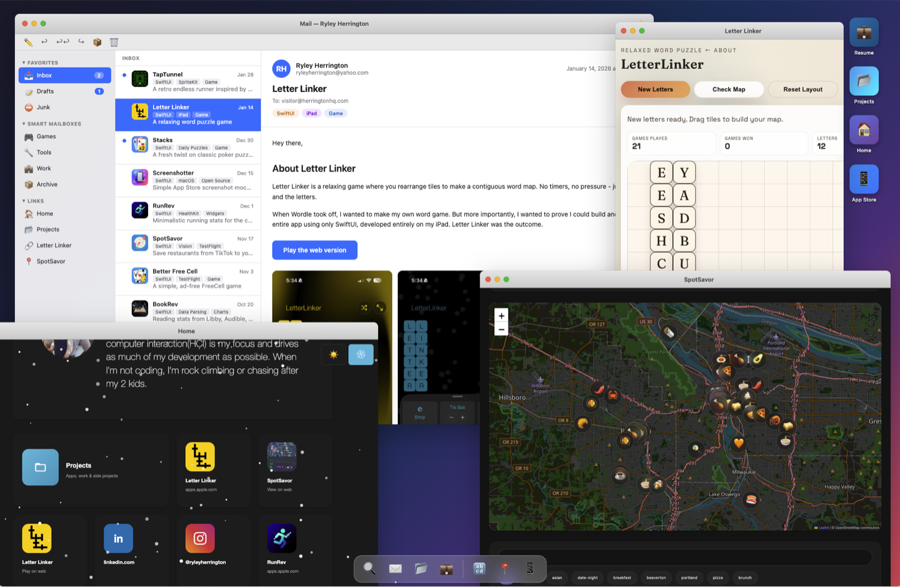
The original idea was simple: I wanted my personal site to look like an email client. Blog posts would be emails in an inbox - you'd click one, it'd open, you'd read it. A fun, familiar metaphor for browsing content.
And that worked great... until I had things that weren't blog posts.
I'd built web versions of Letter Linker and SpotSavor - playable right in the browser. But where do those go in an email client? They're not emails. Cramming a word game into a mail metaphor felt wrong.
So the scope grew. If an email client wasn't enough, what about a whole desktop?
The Desktop Metaphor
Once the idea clicked, it made a lot of sense. A macOS-style desktop gives you a natural way to organize completely different types of content:
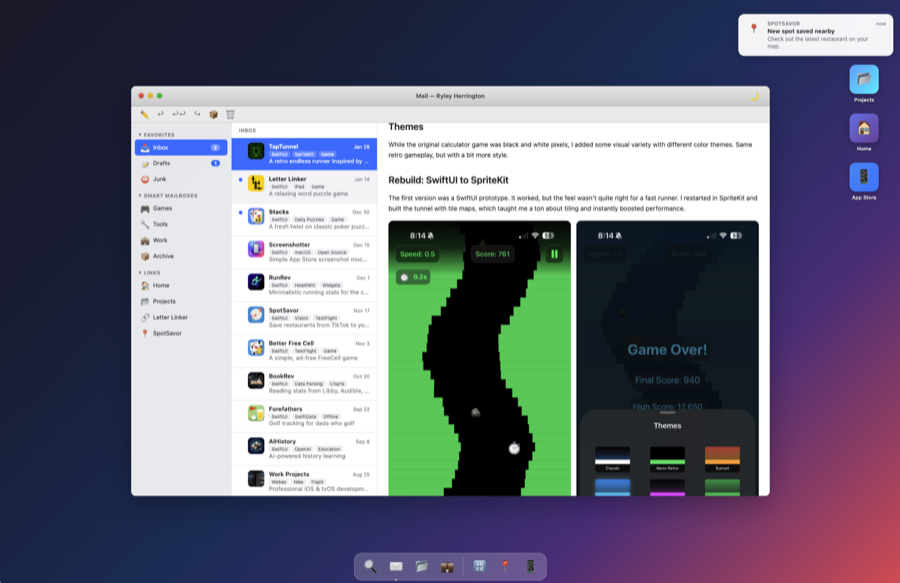
- Mail app for browsing blog posts (the original idea lives on)
- Standalone windows for web apps like Letter Linker and SpotSavor
- A dock for quick access to everything
- Desktop icons if you want to poke around
It turns out "what if my website was an operating system" is one of those ideas that keeps giving you things to build.
The Windowing System
This was the big technical challenge. I needed windows that you could drag, resize, minimize, maximize, and layer on top of each other - basically a window manager in JavaScript.
Each window tracks its own z-index for layering, position for dragging, and state for minimize/maximize. Click a window, it comes to the front. Drag the title bar, the whole thing moves. Hit the green button, it goes full-screen. The yellow button minimizes to the dock.
For someone who usually lets UIKit and AppKit handle all of this... it was educational.
The Dock and the Genie Effect
You can't have a macOS desktop without a dock. And you can't have a dock without the genie effect when you minimize a window.
Getting that animation right - where the window appears to pour itself into its dock icon - was one of those rabbit holes you dive into and emerge from three hours later wondering where the time went. But it feels right, and that matters.
Light and Dark Mode
This one was non-negotiable. We're not animals. The site supports both light and dark mode, respecting your system preference and letting you toggle manually. CSS variables do the heavy lifting, swapping out the entire color palette in one go.
The Easter Eggs
What's a desktop without some fun hidden in it?
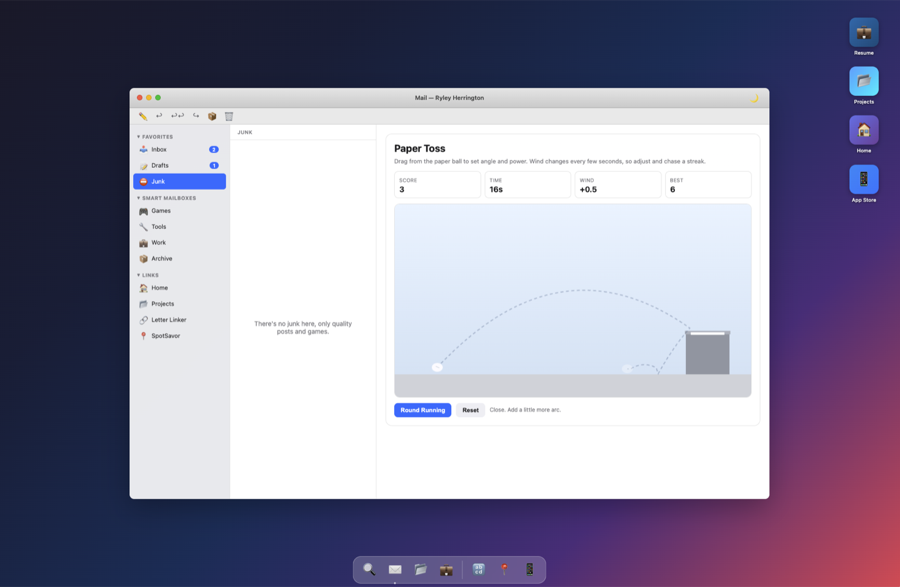
The best one: the Junk folder in the email client doesn't show spam. It opens a Paper Toss game. Crumple up a piece of paper and try to throw it in the trash. Because that's what junk mail is for, right?
The Email Actions
I had a lot of fun with the email action buttons. In a real email client, you'd expect Write, Reply, and Reply All to do email things. Here, they do website things:
- Write an Email - Actually works. It opens a compose window and sends a real email. You can reach me.
- Reply - Takes you to my Bluesky and Mastodon. Because replying to someone in 2026 means posting on social media.
- Reply All - Shows you all of my social media links. The nuclear option.
I love when UI metaphors get a second life like this.
An iOS Dev Builds a Website
I want to be honest: I am not a web developer. I think in SwiftUI stacks and UIKit view controllers. CSS flexbox still occasionally surprises me. JavaScript's this keyword and I have an uneasy truce.
Building this took a lot of learning, a lot of trial and error, and a lot of help from Claude. Having an AI pair programmer that could explain why my z-index wasn't working or why my CSS animation was janky was genuinely invaluable. It didn't write the site for me, but it got me unstuck dozens of times when I would have otherwise been staring at Stack Overflow for hours.
So, thanks Claude. You made an iOS dev's web adventure a lot less painful.
What I Learned
The web platform is more capable than I gave it credit for. You can build a surprisingly convincing desktop environment with just HTML, CSS, and JavaScript - no frameworks, no build tools, no npm install. Just files in a folder.
That said, I have a much deeper appreciation for the windowing systems we take for granted. The number of edge cases in something as simple as "drag a window around" is humbling when you have to implement it yourself.
Would I do it again? Absolutely. Will I go back to Swift for my next project? Also absolutely.
Tech Stack
- HTML/CSS/JavaScript - No frameworks, just the basics
- CSS Variables - For theming and dark mode
- CSS Animations - For the genie effect and transitions
- Claude - AI pair programmer for a lost iOS dev